
Important: Use gz URL per broker.
Mac and Linux are not officially supported by the installer, however we have made instructions, and self-extracting zip files for MT4 and MT5, available so that the user can manually install the plugin to their MetaTrader.
Note: This tutorial assumes your installation of MetaTrader involves Wine compatibility layer (The official installer for MacOS does In fact use wine), if not, you may require additional IT support.
Step 1: Download the Zip file for your version of MetaTrader (MetaTrader 4 / MetaTrader 5)
Once you have downloaded the Autochartist plugin for your version of MetaTrader, unzip the the downloaded file – On MacOS double click the downloaded zip folder to extract its contents you should have a folder called “Autochartist MetaTrader 4” or “Autochartist Metatrader 5”.
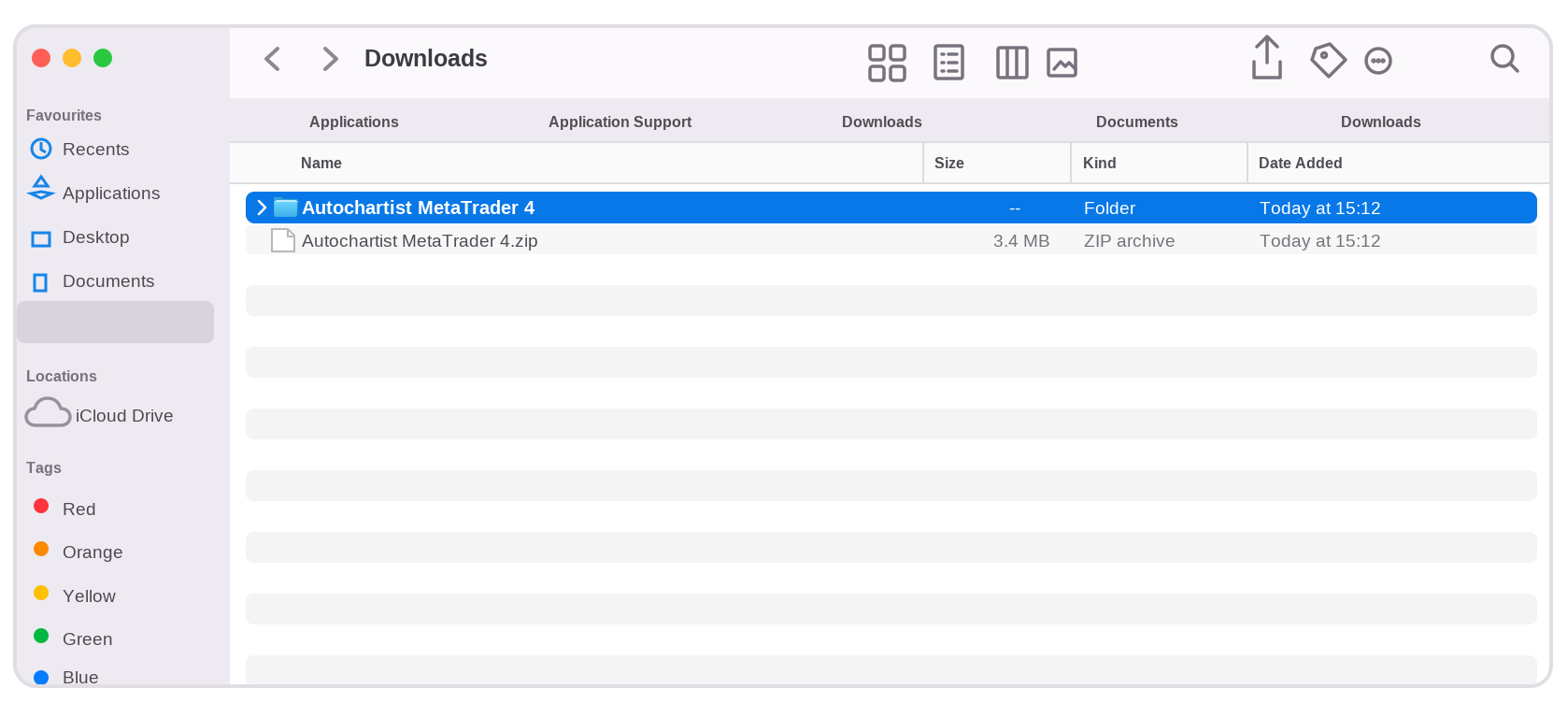
Step 2: Open MetaTrader
Click on File and select ‘Open Data Folder’
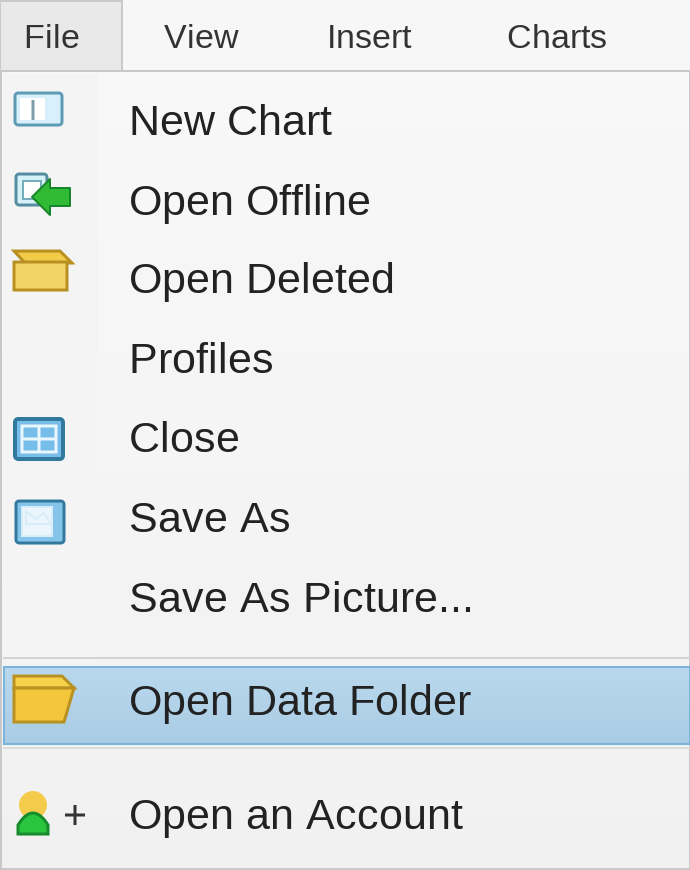
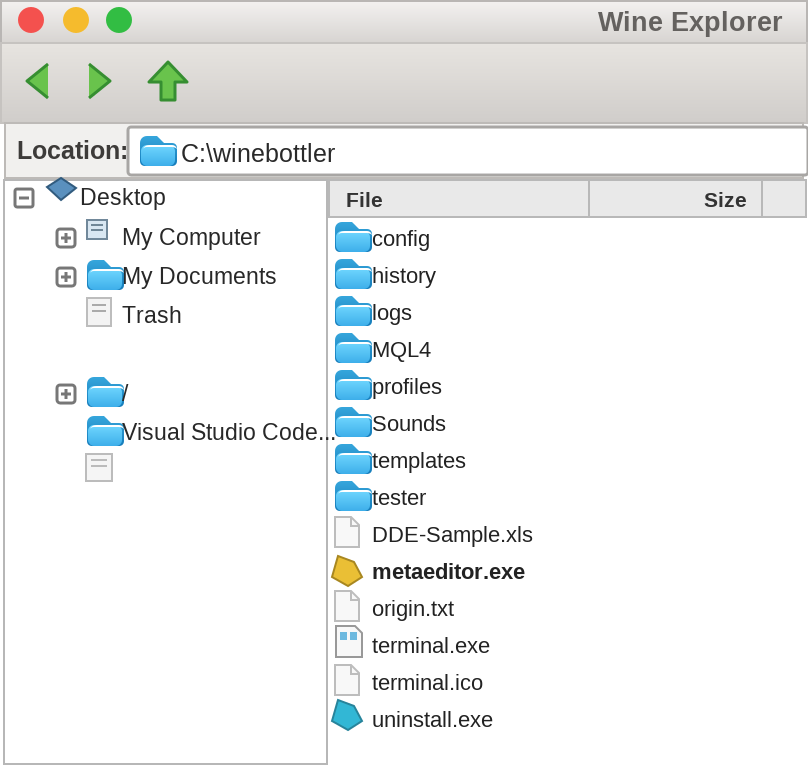
A Wine Explorer Window will open
Copy the path you start in when the explorer window opens (C:\winebottler in this example):
Note: The location may be different depending on how MetaTrader was installed.
Navigate to your Downloads Folder, by first clicking on the “/” item on the left (the most common path for this on MacOS is “/Users/<UserName>/Downloads/”).
Go into the folder that you extracted in Step 1 (in this case “Autochartist MetaTrader 4”) and open (double-click) the “Install.bat” file.
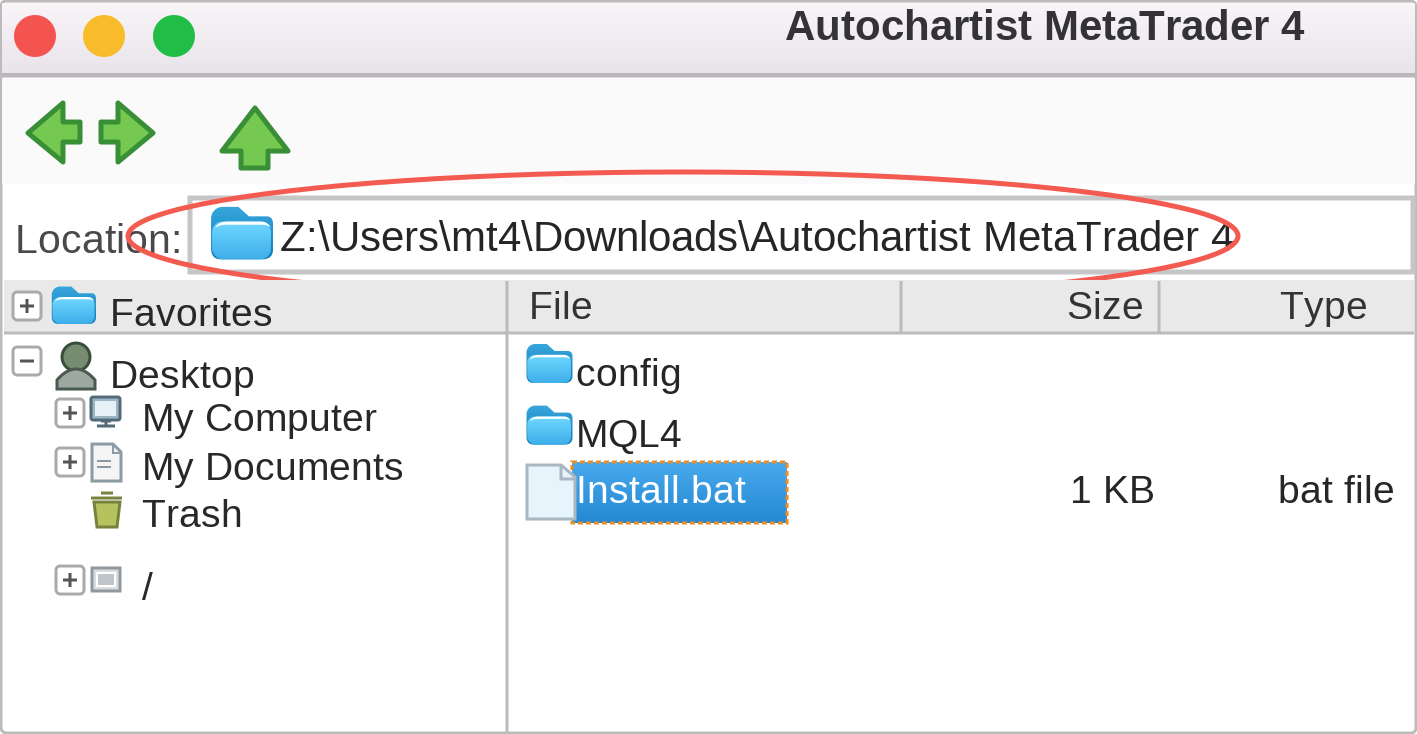
Step 3: After Installing “Install.bat“
Open the “Install.bat” folder
A prompt will ask to “Enter data folder: “

Paste the path that was copied in Step 2 (right click > edit > paste) and press enter

Note: Possibility that one can be continuously asked to overwrite some files; Press Y to overwrite that specific file, or A to overwrite all files
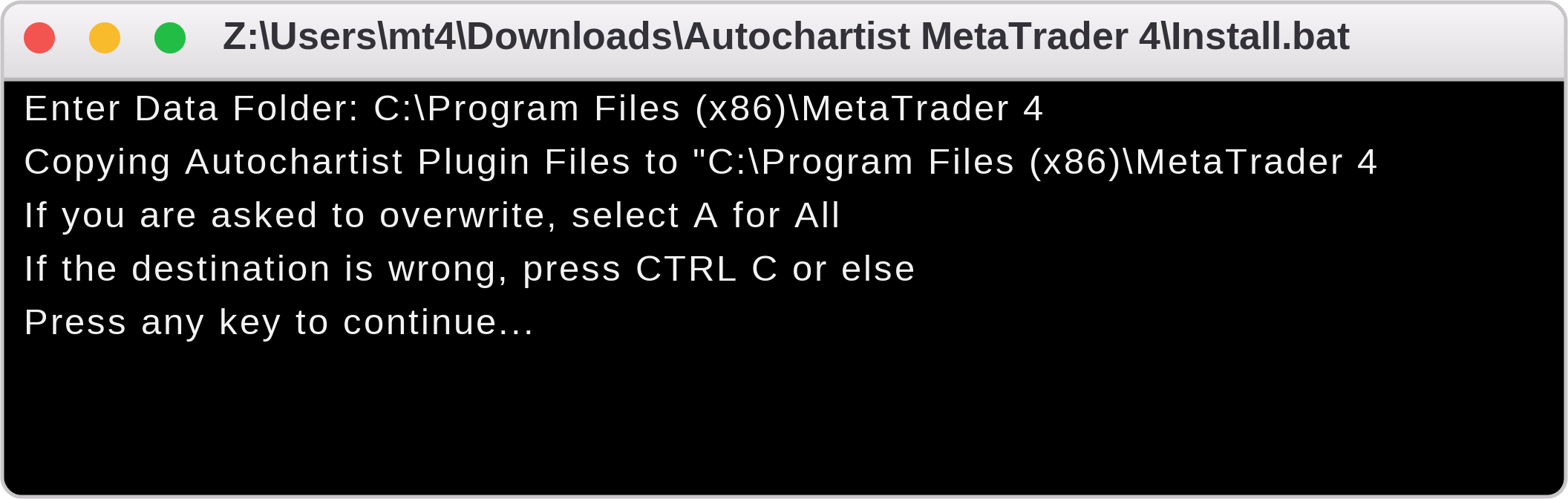
Note: When pasting in the Data folder, if it contains spaces, add double quotes:
"c:\Program Files (x86)\MetaTrader 4"
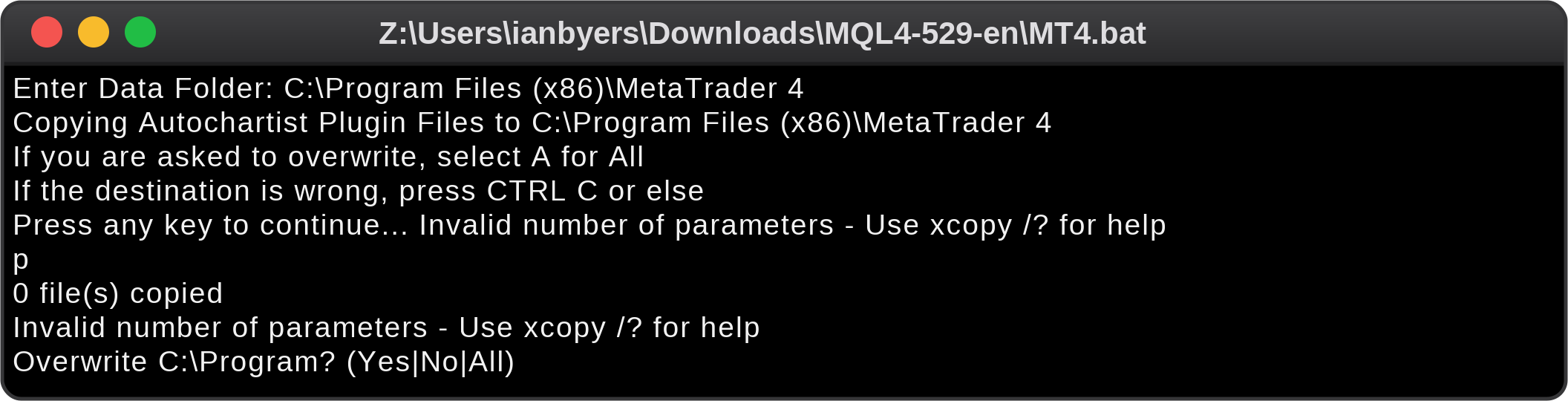
Step 4: Once completed Close & Re-open MetaTrader.
Autochartist should be listed under Expert Advisors in the Navigator window
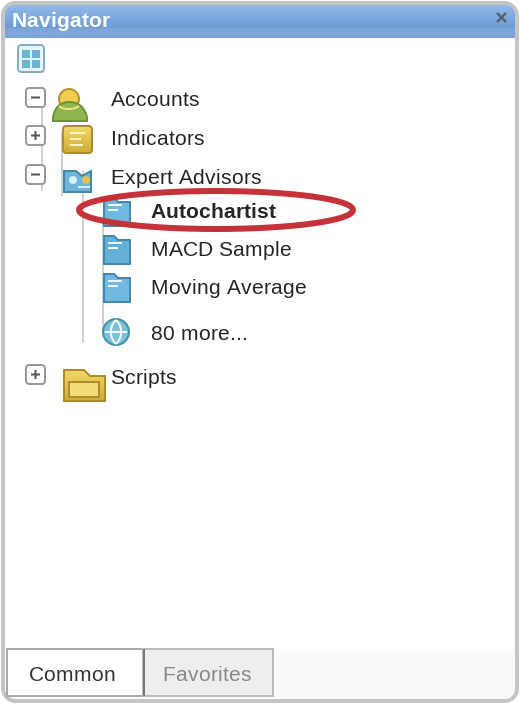
Note: If it's not there, then you may have entered the wrong location to extract the files to when running the “install.bat” file
Start from step 1 again and follow the instructions through carefully
Step 5: Enable Web Requests
In MetaTrader, click on Tools,
Select Options
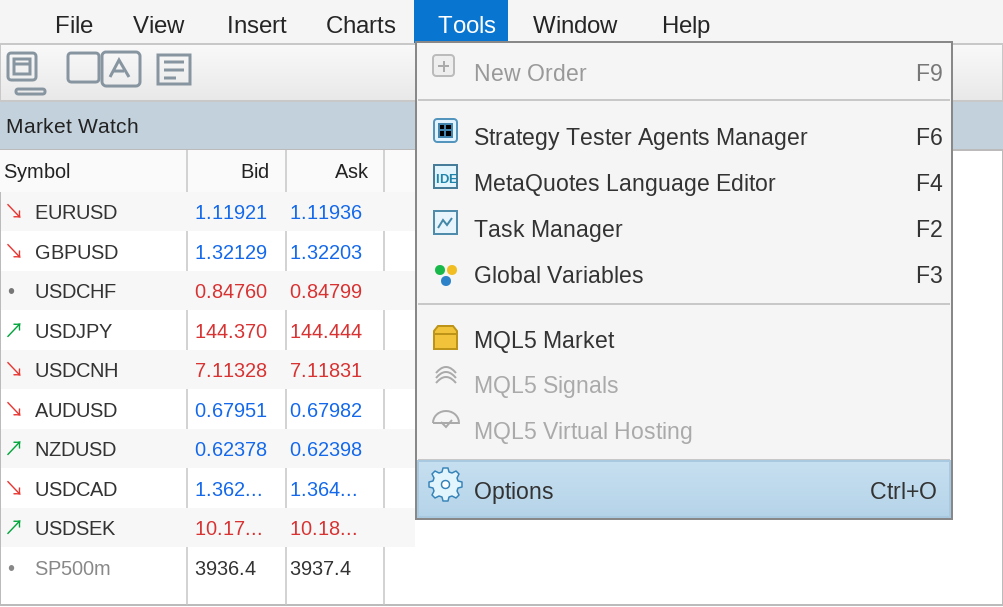
Navigate to Expert Advisors Tab
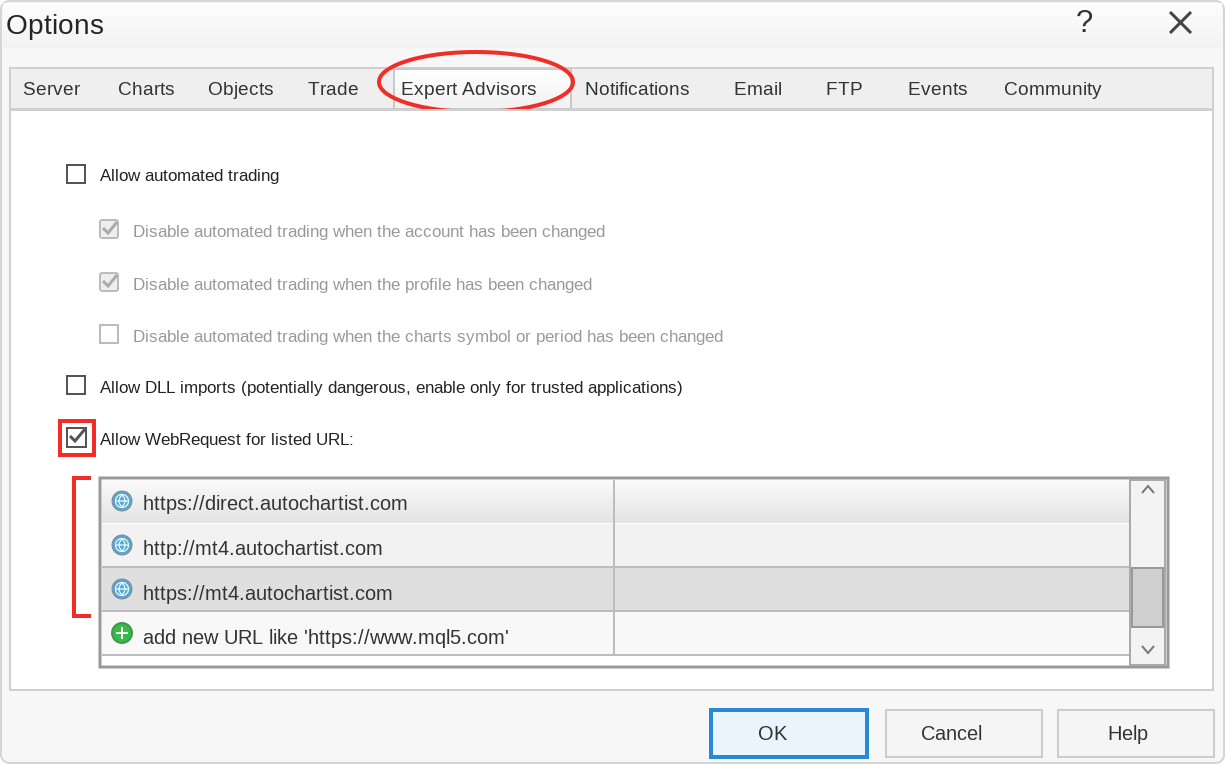
Enable the Check box next to "Allow WebRequest for listed URL"
Add the list of URLS required.
Note: For MT4, these urls are Broker specific, so be sure to get the correct urls from Autochartist.
For MT5, the url to add is: https://mt5.autochartist.com